Video · Subtitles · Rotation
Videos are gathered in the gallery along with your photos. Double-click a video to play it right away, and if there's a subtitle file with the same name, subtitles appear too. Videos lying on their side can be rotated in 90° steps and the rotation written to the file. In the Windows version, you can also use Edit to trim the start and end, add color · music, and export the result as a new file (Video editing).
On this page
When to use itFinding videosPlayingEditingSubtitlesStraightening a video lying on its sideMoving to the next video · skip stepKeyboard shortcutsGood to knowFrequently asked questionsRelated topicsWhen to use it
- When you want to view videos mixed with photos from your phone · camera in date order.
- When you watch movies · lecture videos with subtitles.
- When you fix a video you shot vertically that appears lying on its side.
- When you want to fast-forward (1.5× · 2×) or skip 10 seconds at a time through a long video.
- When you want to make a new video file that keeps only the part you need or adds background music — Video editing.
Finding videos
In the gallery, cells with a ▶ in the middle are videos (with the format MP4 and so on at the bottom). Click ① Videos in the toolbar's type buttons to gather only videos.
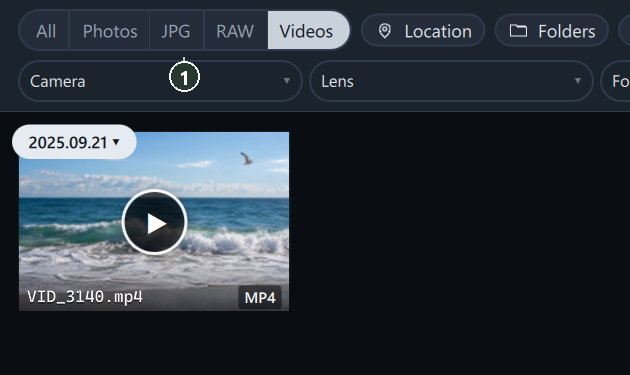
Formats it can read: mp4 · mov · m4v · avi · mkv · webm · wmv · flv · mpg · mpeg · 3gp · mts · m2ts.
Playing
Double-click a video and it plays right away in the full view.

- ① Subtitles — if there's a subtitle file with the same name, they appear at the bottom (see "Subtitles" below).
- ② Seek bar — click to jump to that point, or drag to preview as you go. Accent color = the part you've watched.
- Click the video to play · pause, double-click for full screen.
- If nothing moves for 2.6 seconds, the control bar and mouse pointer hide; move the mouse to bring them back.
Control bar

- ① Play · pause (Space).
- ② Current time / total length.
- ③ Sound off · on (M) · ④ volume (in 5% steps; 0 means off).
- ⑤ Choose subtitles (only when there's a subtitle file) · ⑥ playback speed 0.5x – 2x.
- ⑦ Full screen (F) — press Esc to leave it.
Volume · mute · the chosen subtitle language are kept for the next video. Playback speed starts at 1x for each video.
Editing
Click Edit at the top right of the full view to open the video editing screen. Trim the start and end, apply color · LUTs, add background music · fades, change the aspect ratio and capture scenes, then export as MP4. The original video isn't changed → Video editing.

Video editing is available in the Windows version. Elsewhere, External editor appears in this spot instead.
Subtitles
Put a subtitle file with the same name in the same folder as the video and it turns on automatically.
- Example:
trip.ko.srt·trip.en.srtnext totrip.mp4. - Formats:
.smi·.srt·.vtt·.ass·.ssa. Text encodings UTF-8 · EUC-KR are detected automatically. - The language tag at the end of the name (
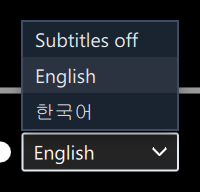
.ko·.en·.ja…) is read and shown in the menu as 한국어 · English · 日本語 and so on.
Click ⑤ to choose the subtitle language or Subtitles off.
Straightening a video lying on its side
- Click ① the rotate button at the top right of the full view. Each click rotates it 90°, on screen only (preview).

- When it's the right way up, click ② Apply. When Applying… finishes, the rotation is written to the file and the thumbnail changes too.

In the gallery, you can also click the video and then use 90° → Apply in Details.
| Format | How it's applied |
|---|---|
mp4 · mov · m4v · 3gp | The video itself stays as it is; only the orientation info changes — fast, with no change in quality |
wmv | The rotated video is saved again — may take a while and the quality may change slightly |
| Others | Rotate them in the External editor |
Moving to the next video · skip step
- While watching a video, ← · → skip 10 seconds. For the previous · next file, use Shift+← · Shift+→ · PgUp · PgDn, the ‹ · › at both sides of the screen, or the filmstrip.
- Change how far it skips in Settings → Full view → Video seek step (seconds) (1–300, default 10).
Keyboard shortcuts
| Key | Action |
|---|---|
| Space | Play · pause |
| ← · → | Skip back · forward (10 seconds by default) |
| Shift+← · Shift+→ · PgUp · PgDn | Previous · next file |
| M | Sound off · on |
| F · double-click the video | Full screen on · off |
| Esc | In full screen, leaves full screen only; otherwise closes the full view |
| 1 – 5 · 0 · P · X · U | Rating · flag (same as for photos) |
Good to know
While you're watching a video, finding photos pauses briefly ("Paused briefly (video playing)"). This keeps videos on external drives from stuttering.
Rotating a photo 90° doesn't change the original, but Apply for a video changes the video file itself. If you want to keep the original, copy it first (especially wmv).
Trimming the start and end · color correction · background music are done in Video editing (Windows version). To join several videos together, open another program with External editor.
For videos, F is the full screen key (for photos, it's the focus point).
The subtitle file must have the same name as the video. If it's different, like trip_subs.srt, rename it to trip.srt or trip.en.srt.
Frequently asked questions
I get "This video can't be played."
The file may be damaged, or it may be in a format this PC can't decode. Try opening it in another player with External editor.
Video thumbnails are black.
Click Settings → Rebuild video thumbnails → Rebuild videos only (Settings).
The subtitles look garbled.
Try saving them again as UTF-8 in Notepad or a similar editor.
The subtitles menu shows only a format name like SRT.
Add a language to the end of the name, like movie.en.srt, and it shows as English.
There's no sound.
Check the speaker · volume on the control bar and try pressing M.
I don't see the rotate button.
It appears only for mp4 · mov · m4v · 3gp · wmv.