Free version · Full version · License registration
You can use every feature of photoKam Radar for free. The difference between the free and full versions is the watermark. The free version adds a faint photoKam mark when you export edited photos, and in the full version you can put your own logo · text watermark on exported photos. If you've bought the full version, just enter your order number and name, and it's registered in under a minute. Follow the pictures below in order.
On this page
When to use itWhat's the difference between the free and full versions?Step by step ① Register with your order number (recommended)Step by step ② Register manually (when there's no internet)If you see one of these messagesExporting photos with the free versionGet a 1-year full version by sharing photos (Showcase)Good to knowFrequently asked questionsRelated topicsWhen to use it
- When you've bought the full version and want to register it on this PC.
- When you need to register manually somewhere without internet access.
- When you want to know what's different between the free and full versions.
- When a message appears while you're registering.
- When you want to get a 1-year full version by sharing your edited photos to Showcase.
What's the difference between the free and full versions?
| Free version | Full version | |
|---|---|---|
| Features you can use | Every feature | Every feature |
| Who can use it | Anyone (individuals · companies · institutions · including commercial use) | Same |
| Edited photos · exported photos · slideshows | A faint diagonal "photoKam Radar · Free" text watermark | No watermark |
| Your own watermark (logo · text) | Preview only — not added to exported photos | Added to exported photos |
| Top bar badge | Orange Free version | Licensed |
Below is the same photo in the editor. Drag the center line — the left side is the free version (with watermark), the right side is the full version.
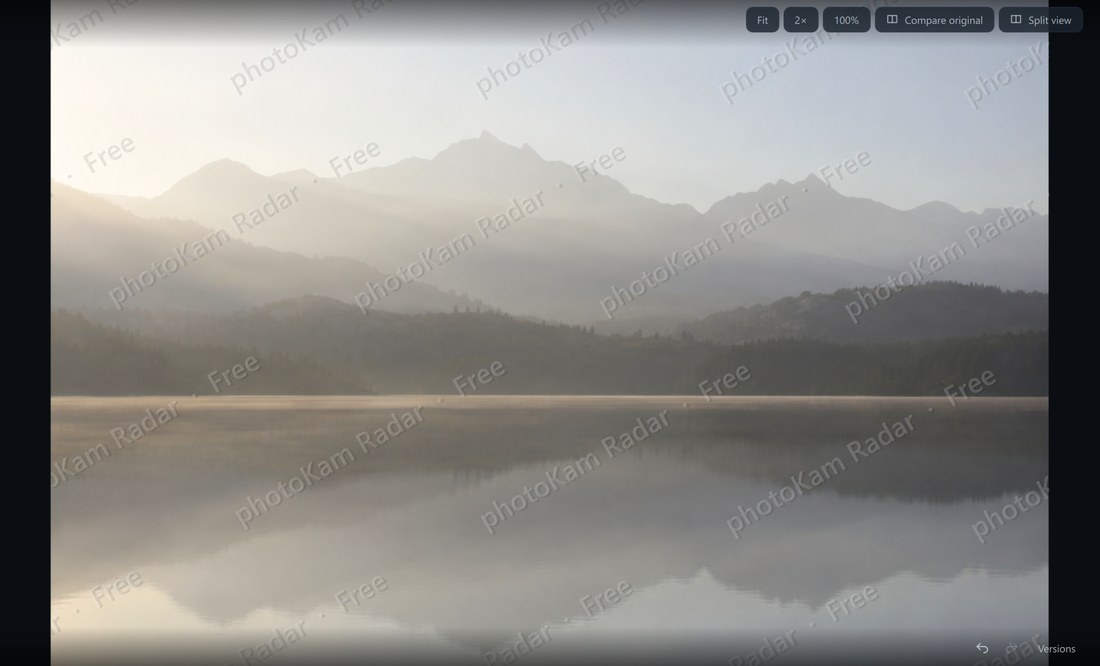
 BeforeAfter
Step by step ① Register with your order number (recommended)
If you bought the full version on our website, this is the easiest way. You'll need: the 12-digit order code from your purchase email, your name and an internet connection.
Step 1 — Open the License window
Click the orange ① Free version on the right of the app's top bar.

Step 2 — Agree to the terms
The License window opens.
- Click ① I agree to the license terms to check it (to read the terms, click Read terms next to it).
- Make sure ② Register with order number is selected (it is selected from the start).

Step 3 — Enter your order details and click Register
- ① Order number — the 12-digit order code in the email we sent after your purchase (for example 1234-5678-9012). You can type it with or without the hyphens.
- ② Buyer name — your name (it's shown on the license).
- ③ Email (recommended) — if you enter it, we'll also email you the license.
- Click ④ Register. Checking… appears briefly.

Step 4 — Check that it's done
Once registered, the window changes like this.
- ① The status changes to Licensed · active (green).
- ② Licensed to · Issued · Valid until are shown.
- ③ "License activated. Thank you!" appears.
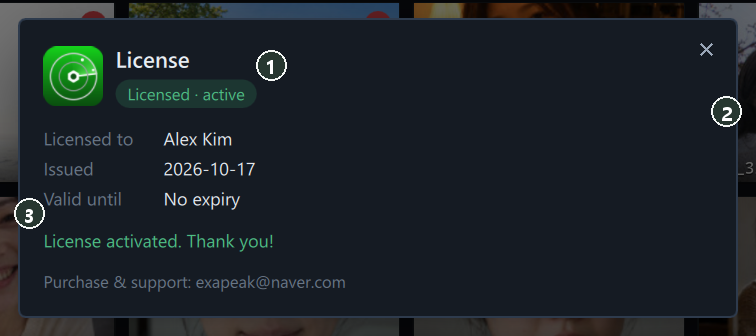
When you close the window, the badge in the top bar also changes to ① Licensed, and the watermark in the editor disappears right away.

— your order couldn't be confirmed right away. After the seller checks it, we'll send the license to the email address you entered in ③. When you receive it, enter it as in Step 2 of "Register manually" below.
Step by step ② Register manually (when there's no internet)
Use this method if you can't connect to the internet.
Step 1 — Switch to Register manually and send your activation code
In the License window, after agreeing to the terms:
- Click ① Register manually.
- ② This PC's activation code is shown in the gray box.
- ③ Copy code — copies the code. Paste it into the email service you use (webmail and so on) and send it to exapeak@naver.com.
- ④ Write email — opens this PC's email program with the recipient · subject · code filled in automatically.
Be sure to include the buyer's name and the order number in the email. If you have another device with internet access, you can also get your license right away at https://www.exapeaksoft.com/activate with the code you copied.
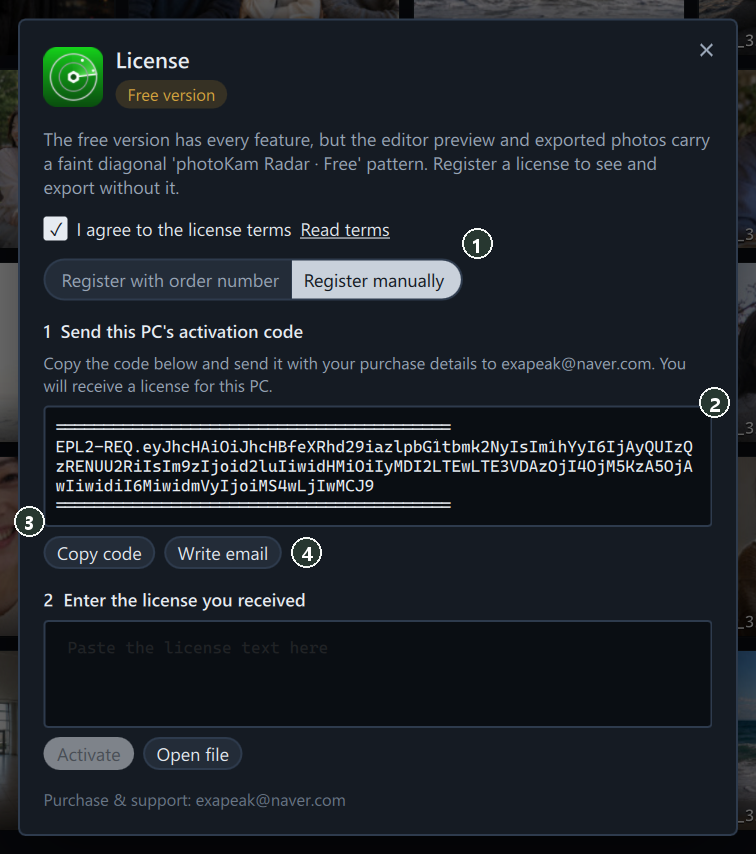
Step 2 — Enter the license you received
The license arrives as several lines of text or as a license.PhotoKamRadar file.
- ① If you received text, copy it in full, from the first line (=====) to the last line (=====), and paste it into this box.
- Click ② Activate.
- ③ If you received a file, choose it with Open file.
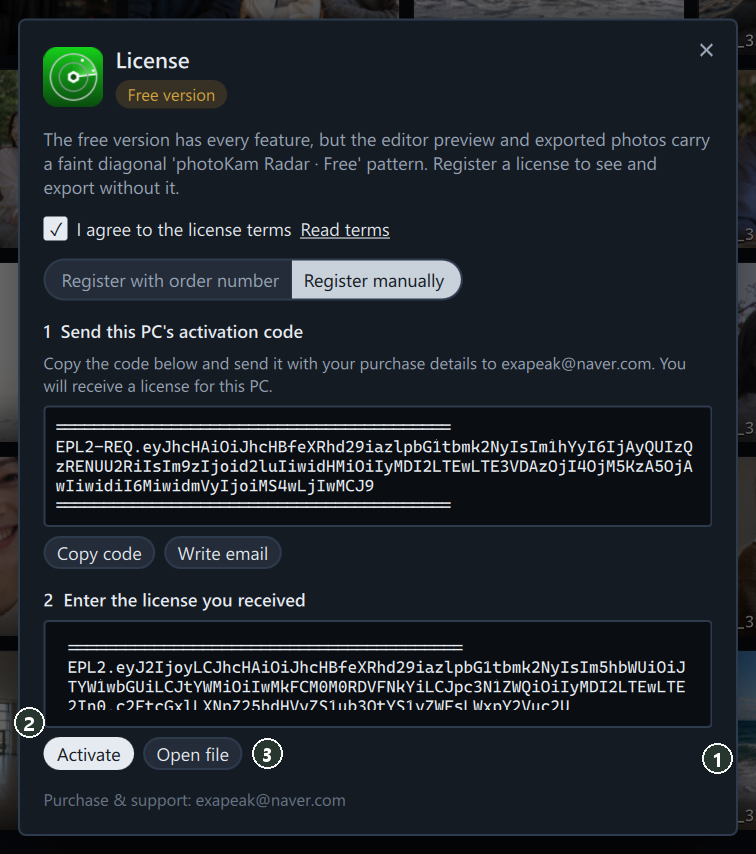
When "License activated. Thank you!" appears, you're done (the same screen as Step 4 of ①).
If you see one of these messages
| Message | Meaning | What to do |
|---|---|---|
| "License activated. Thank you!" | Registration complete | — |
| "Enter the order number and the buyer name." | A box is empty | Fill in both ① the order number and ② the name |
| "Could not reach the server. …" | No internet connection | Check your internet connection; if that doesn't help, use ② Register manually |
| "Registration failed. …" | The order couldn't be found | Check the order number · name and try again; if it still fails, contact us |
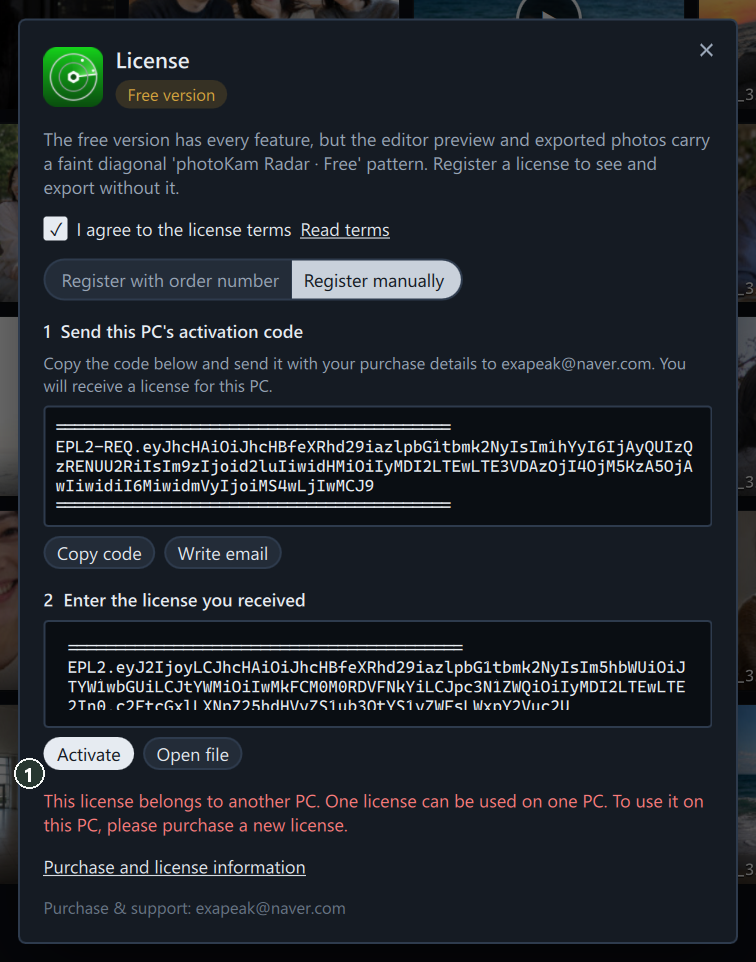
| "This license belongs to another PC. …" | A license issued for another PC's activation code | Get it again with this PC's code (one license = one PC) |
| "The license can't be read. …" | The pasted text was cut off | Copy it again from start to finish, or use Open file |
| "This license has expired." | A license whose term has ended | Contact us |
Below is what you see for "another PC's license". ① A red message appears with the Purchase and license information link.
Exporting photos with the free version
A free-version notice appears at the top of the Export window. Click ① Register license to open the License window right away. The watermark is added only to edited photos; unedited photos (including photos that were only rotated 90°) export without a watermark, even in the free version.

Get a 1-year full version by sharing photos (Showcase)
Share photos you took yourself and edited in photoKam Radar to the photoKam Showcase gallery. Once you have 10 approved photos and 24 hours have passed since your first upload, you can apply for a 1-year full version for this device (one device per account). Start with the gold Showcase button in the editor's top bar → Sharing to Showcase.
Good to know
A registered license is stored on this PC. It stays registered even if you update the app or uninstall and reinstall it.
On macOS you register the same way, in the same window.
One license is for one PC. To use the app on another PC, please buy a new license for that PC.
Photos you already exported with the free version keep their watermark. Export them again after registering.
You may use the free version for work or commercial purposes. No features are limited.
Frequently asked questions
Where do I find my order number?
It's the 12-digit order code in the email we sent after your purchase. If you can't find the email, check your spam folder or write to exapeak@naver.com.
The Register button doesn't respond.
Check that you've checked I agree to the license terms and entered both the order number and the name.
Nothing happens when I click Write email.
This happens when there's no default email program on this PC. Copy the code with Copy code and send it by webmail.
I've changed computers.
A license is tied to one PC. Please buy a new license for the new PC. If you have special circumstances, contact us at exapeak@naver.com.
You can buy the full version at our pricing page — USD 39.