Viewing and selecting photos
In the gallery, you can skim your photos as a grid · tiles · list, choose them with ratings (★) and pick (✓) · reject (✕) flags, and compare · rotate · copy · move several photos to the Recycle Bin at once. Ratings · flags · tags are stored only inside photoKam Radar, and your original files are never changed.
On this page
Watch the videoWhen to use itThree view modesMarks on thumbnailsSelecting photosSelection barDetailsChoosing quickly with the keyboardRight-click menuMoving to the Recycle Bin · renamingComparingRefresh buttonStep by step — gathering only your best photosKeyboard shortcutsGood to knowFrequently asked questionsRelated topicsWhen to use it
- When you skim hundreds of photos and pick out only the good ones.
- When you want to compare two or three similar photos side by side.
- When you tag photos so you can gather them later.
- When you copy · move · send to the Recycle Bin the photos you selected.
Three view modes
Switch with ① the three buttons on the right of the toolbar (Ctrl+1 · Ctrl+2 · Ctrl+3). The mode you choose stays the same the next time you open the app.

| View | Look | When to use it |
|---|---|---|
| Grid | Fills cells of the same size (edges may be cropped) | Skimming many photos quickly, dragging on empty space to select several |
| Tiles | Fills each row at the photos' own aspect ratios | When landscape and portrait photos are mixed, or for enjoying your photos |
| List | One photo per row — file name · date · camera · size · format · rating · flag | Comparing and organizing by name · date |
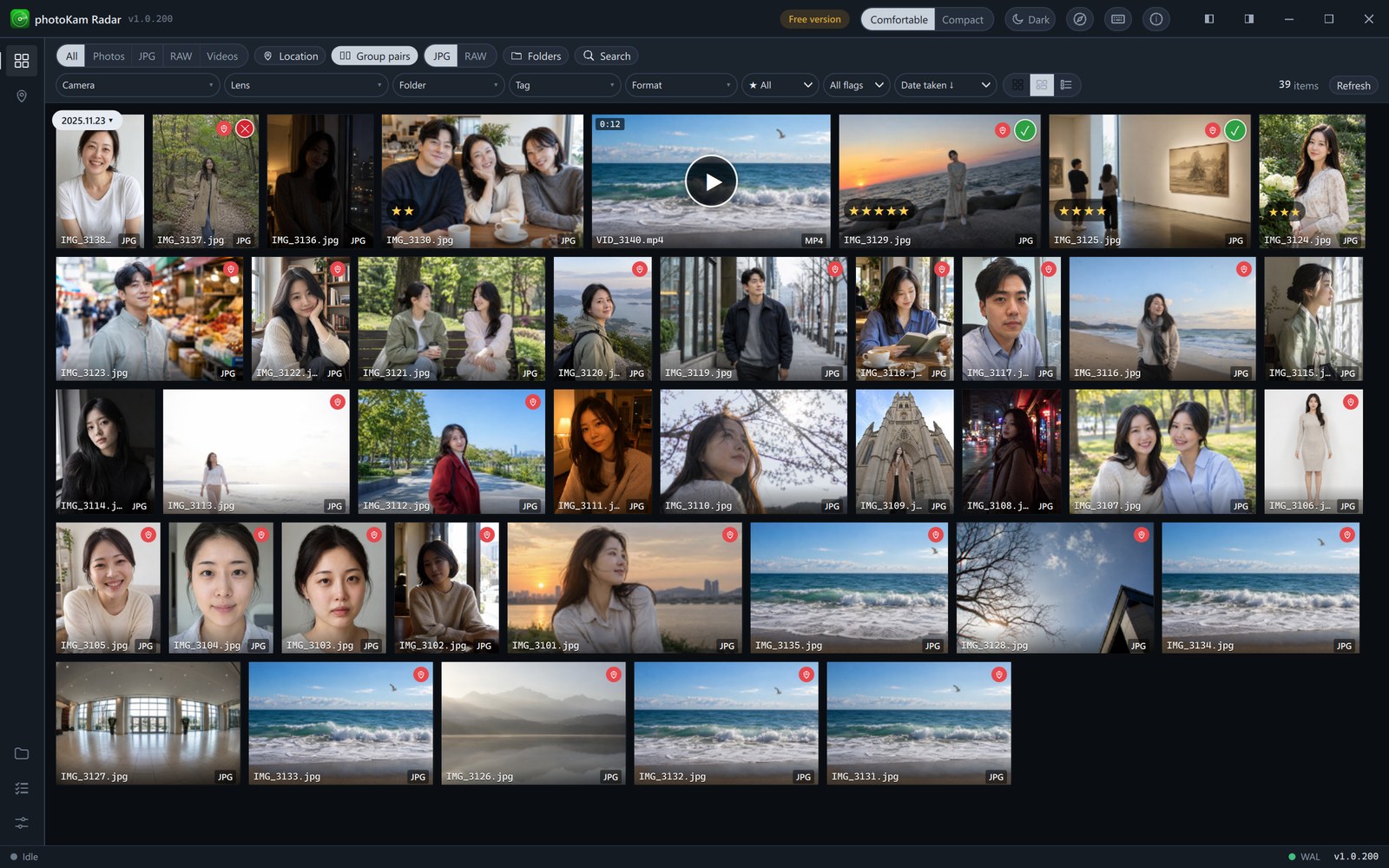
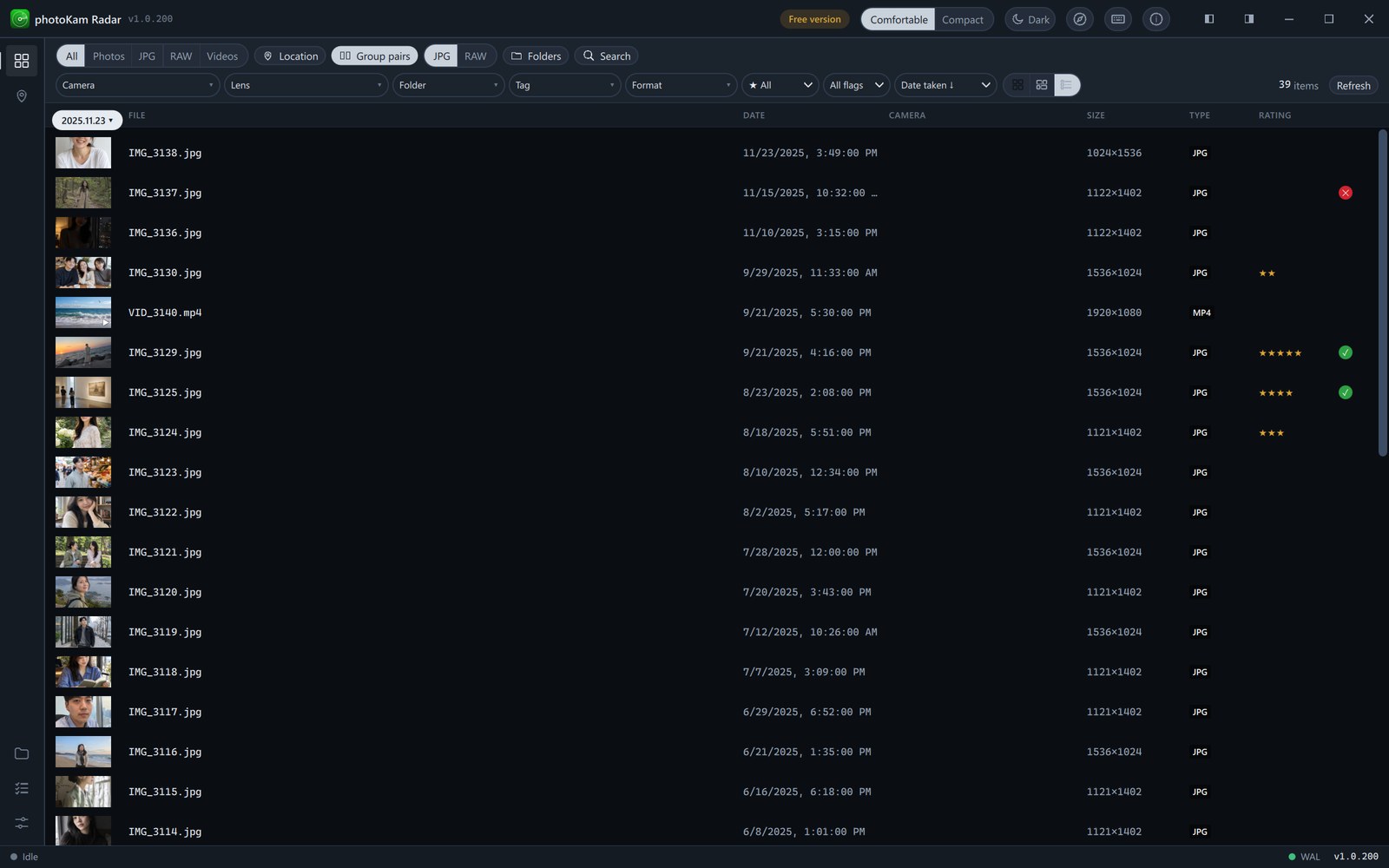
Change the grid cell size in Settings → Thumbnail size (120–260 px).
Marks on thumbnails

| Position | Mark | Meaning |
|---|---|---|
| Bottom left | Yellow ★ | Number of stars |
| Top right | Green ✓ / red ✕ | Picked / rejected |
| Bottom | File name · format (JPG · CR3 · MP4 …) | RAW+JPG when the RAW and JPG of the same shot are grouped |
| Top right | Red pin | A photo with location data (GPS) |
| Top left | Pencil | A photo edited in this app (Edited) — the thumbnail also shows the edits |
| Center · top left | ▶ · 1:23 | A video and its length |
| Top left | Red Gone + dimmed cell | A file deleted from the disk after the list was loaded |
| Center | Spinning icon / ⃠ | Thumbnail being created / file that can't be read |
Selecting photos
| How | Result |
|---|---|
| Click | Selects only that photo, and its details appear on the right |
| Ctrl + click | Adds or removes photos one at a time |
| Shift + click | Everything from the last photo you clicked to this one |
| Drag on empty space (grid only) | All photos inside the rectangle |
| Ctrl+A / Esc | Select all / clear selection |
| Double-click · Enter | Full view (Full view) |
Selected cells shrink slightly and get a border and a ✓. Change the border color in Settings → Selection color.

Selection bar
When you select photos, the right end of the toolbar changes to the selection bar.

- ① The number of photos selected.
- ② Compare — with 2 or more photos. Opens the compare screen (see "Comparing" below).
- ③ Rotate 90° — 90° clockwise. The original stays as it is; the rotation is saved as an edit (see "Good to know" below).
- ④ Organize ▾ — ⧉ Copy · ➜ Move to folders you registered in advance. Register the folders in Settings → Organize presets.
- ⑤ Move to Recycle Bin — asks once, then sends the photos to the Windows Recycle Bin.
- ⑥ Clear selection.
If you've copied the edits of another photo, a Paste edits button also appears (Editor).
Details
Click a photo and its details appear on the right. At first the panel floats over the list; pin it and it docks beside the list.
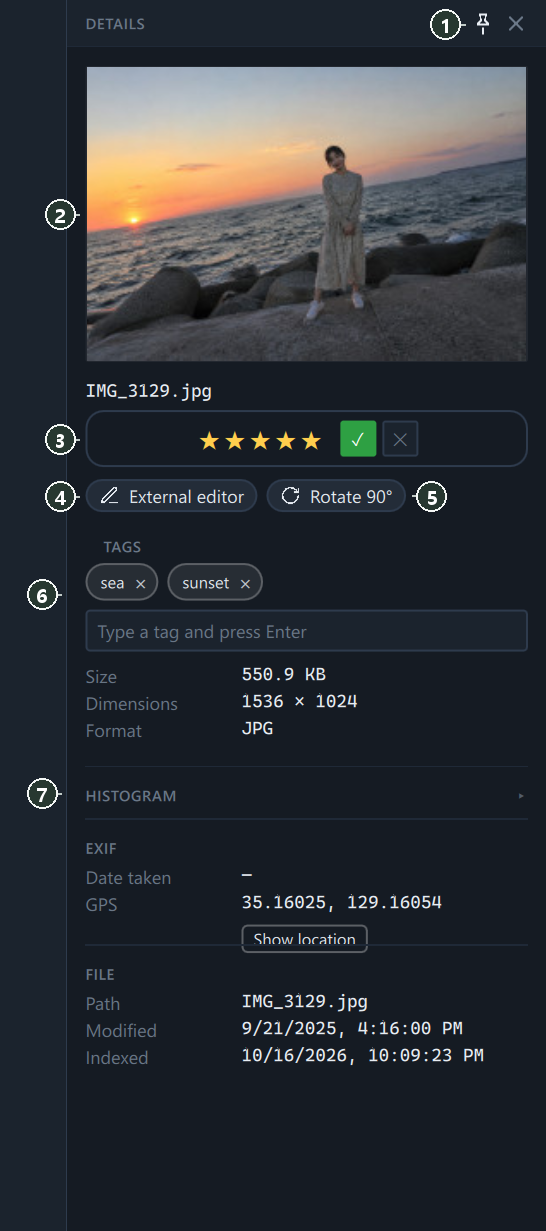
- ① Pin — dock beside the list / float again. The ✕ next to it closes the panel.
- ② Preview — click it to open the full view.
- ③ Rating · flag — click a star to give that many stars. Click the same star again for 0. Click ✓ pick · ✕ reject again to clear it (only one of the two at a time).
- ④ External editor — opens the original in another program (set it in Settings; if empty, the Windows default program is used).
- ⑤ Rotate 90° — the same as rotating from the selection bar. For videos, preview the rotation with 90° and click Apply to write it to the file (Video).
- ⑥ Tags — type in the box and press Enter. Remove a tag with the × on its chip.
- ⑦ Histogram — click to expand it and see the brightness distribution.
Below that follow size · resolution · format, shooting information (EXIF — camera · lens · aperture · shutter · ISO and so on, only the values that exist), location (GPS — Show location to see it on a map), and file path · dates.
Choosing quickly with the keyboard
Applies to all selected photos at once.
| Key | Action |
|---|---|
| 1 – 5 · 0 | Rating · clear rating |
| P · X · U | Pick · reject · clear flag |
Right-click menu
Right-click a photo to open it. If you right-click a selected photo, the action applies to all the selected photos.

- Open folder — opens the folder containing that file in File Explorer.
- Open full view.
- Copy (N photos) — copies the files. Paste them in File Explorer with Ctrl+V.
- Rename — same as F2.
- External editor.
- For edited photos, Copy edits appears too, and if you've copied edits, so does Paste edits (N).
Moving to the Recycle Bin · renaming
Recycle Bin: Select photos and press Delete (or ⑤ on the selection bar). Click Move to Recycle Bin in the window below to move them to the Windows Recycle Bin. To undo, restore them from the Recycle Bin.
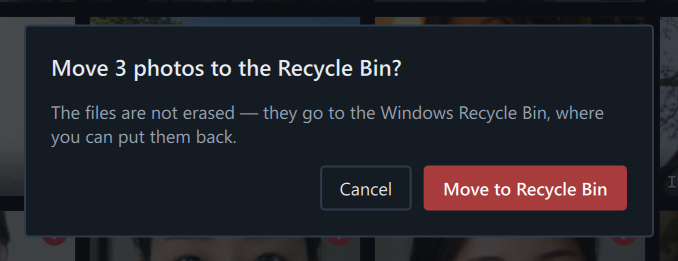
Renaming: Select a photo and press F2. Enter a new name and click Rename. If you leave out the extension, the original extension is kept.

Comparing
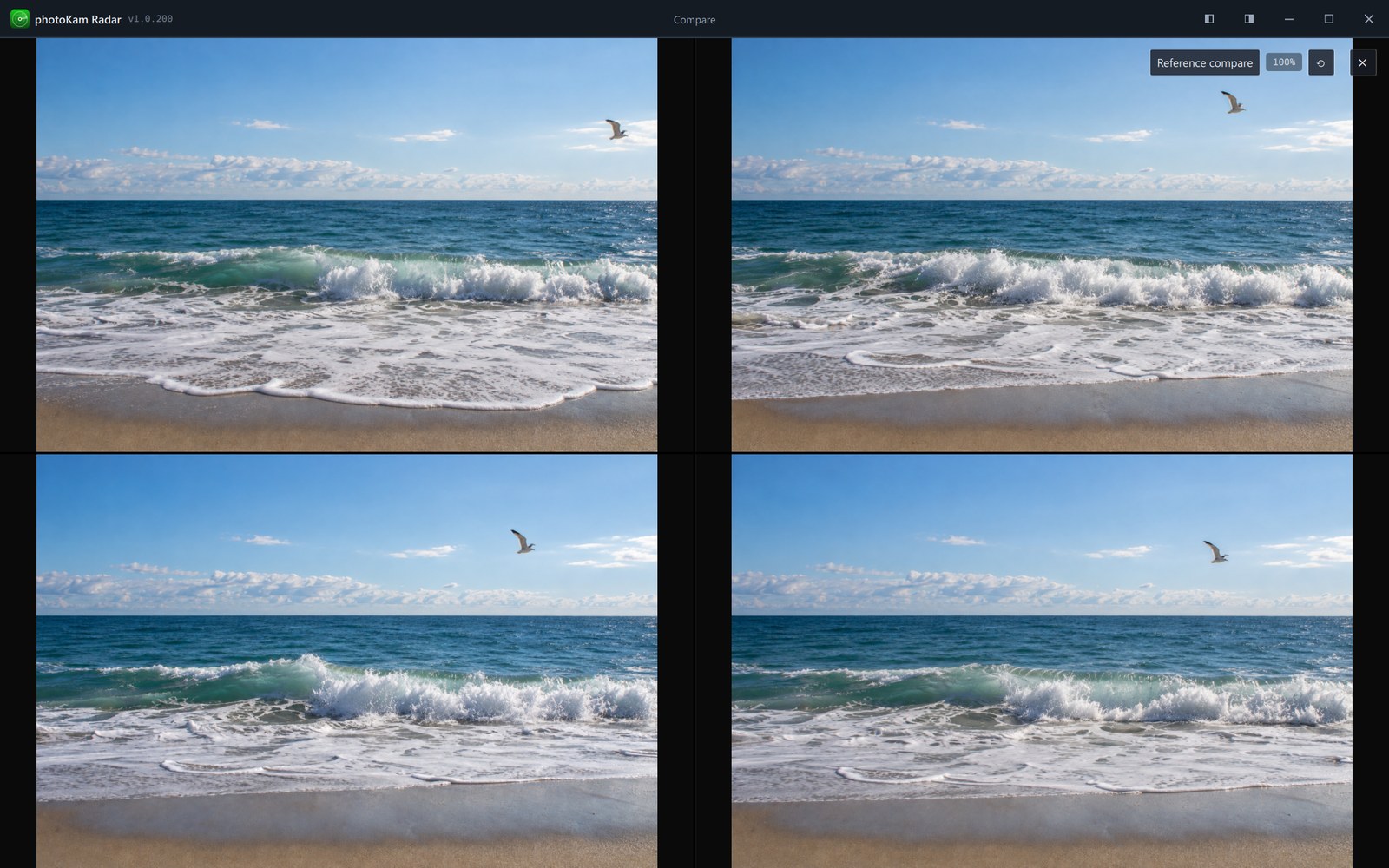
- Select 2 to 4 photos to compare.
- Click Compare on the selection bar. The photos open side by side (2 photos = 2 columns, 3 photos = 3 columns, 4 photos = 2×2).
- Zoom with the wheel or drag in one photo, and all photos move together to the same spot at the same zoom. Handy for comparing focus · camera shake.
- Close with Esc.
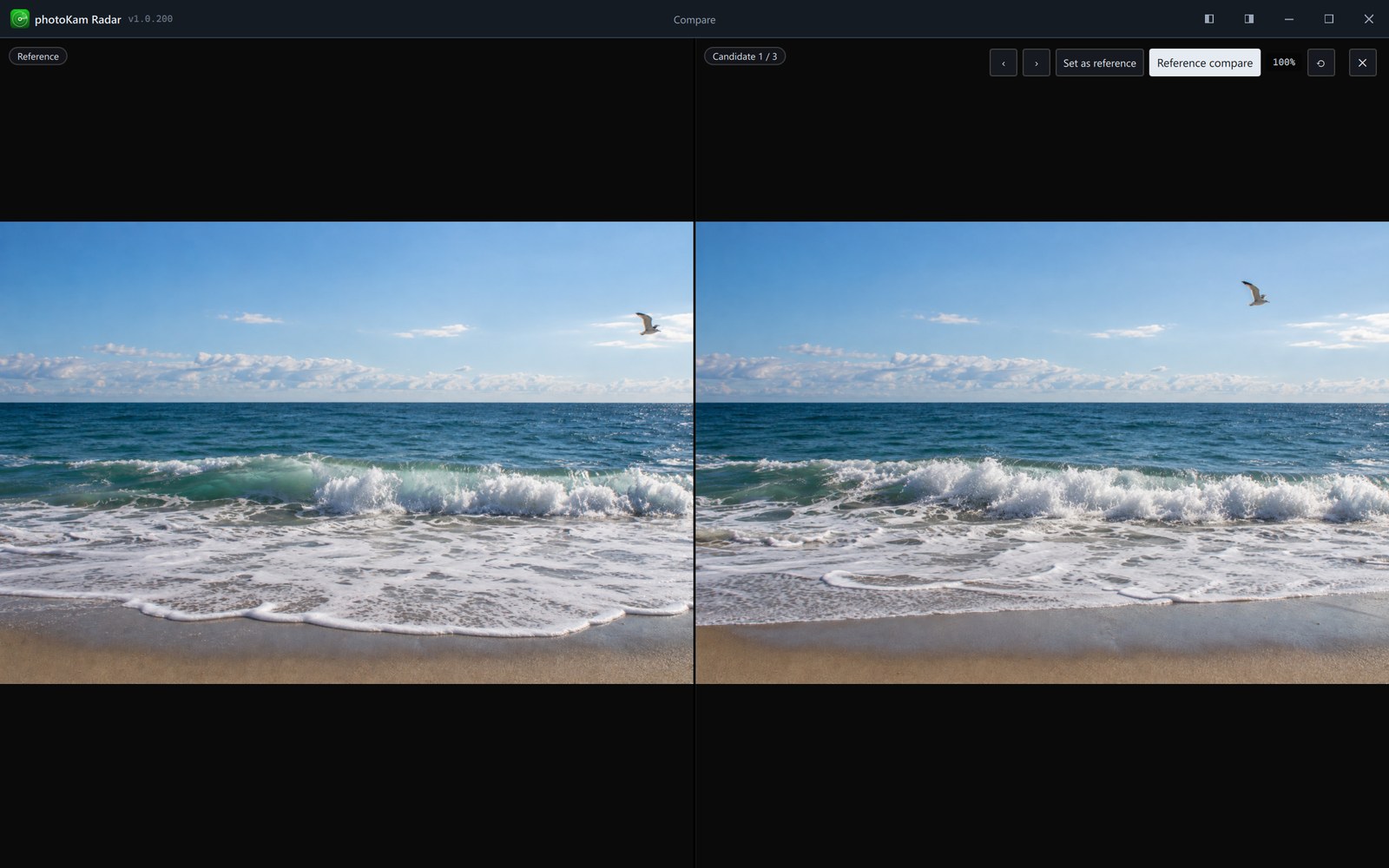
Reference compare: Click Reference compare at the top right to fix one photo as the reference and view the others one by one as candidates, 1:1. Move through the candidates with ‹ · › (or ← · →), and click Set as reference to make the current candidate the reference. 0 resets the zoom.
Step by step — gathering only your best photos
- Switch to Ctrl+1 (grid) and skim quickly. If you're unsure, double-click to view a photo large.
- Press P (pick) or 5 for photos you like, and X (reject) for photos to throw away.
- Change All flags on the toolbar to Picked to gather only the picked photos (Search and filters).
- Conversely, gather only the Rejected photos and send them all to the Recycle Bin at once with Ctrl+A → Delete.
Keyboard shortcuts
| Key | Action |
|---|---|
| Ctrl+1 · Ctrl+2 · Ctrl+3 | Grid · tiles · list |
| 1 – 5 · 0 | Rating · clear |
| P · X · U | Pick · reject · clear flag |
| Ctrl+A · Esc | Select all · clear selection |
| Enter · double-click | Full view |
| Delete · F2 | Recycle Bin · rename |
| Ctrl+C | Copy the selected files (to paste in File Explorer) |
| Ctrl+Shift+C · Ctrl+Shift+V | Copy edits · paste edits |
| F5 · Ctrl+G | Refresh · jump to date |
On macOS, press ⌘ (Command) instead of Ctrl.
Good to know
It helps to use ratings for "how good" and flags for "use it or not".
You can also copy photos by dragging thumbnails straight into File Explorer or a messenger window.
Photos with a frame or magazine cover also show their decorated look in thumbnails (scaled down so nothing gets cut off) → Frames · Magazine covers · Watermarks.
Rotate 90° does not change the original file. It's saved as an edit, so the photo looks rotated only inside this app, and the cell gets an Edited mark. Rotate four times and it's back to the original. If you need a rotated file, create a new file with Export (Export).
Rename · Move to Recycle Bin · moving with Organize ▾ change the actual files.
Selecting by dragging on empty space works only in grid view.
If you paste files copied in File Explorer into the gallery with Ctrl+V, they're copied to the top of the first folder (drive) in the library and searched again. The original files stay where they were.
Frequently asked questions
The panel on the right pops up and covers the photos every time I click one.
Close it with Esc, or pin it to dock it beside the list. Once docked, it doesn't cover anything.
I clicked a star and the rating went to 0.
Clicking a star you've already given clears it.
Pressing 5 doesn't rate the photo.
Select a photo first. It doesn't work on the Settings · Map screens.
Are ratings · tags written to the photo files too?
No. They're stored only inside photoKam Radar.
The same photo appears twice, as a JPG and a RAW.
Turn on Group pairs on the toolbar to show just one (the preferred format) (Search and filters).