Download
How to install, update and uninstall photoKam Radar, and the system requirements. The free and full versions use the same installer; register a license after installing and your copy becomes the full version.
Windows
- File: Windows installer (
.msi, 64-bit) - The installer and the program are digitally signed by the developer (ExaPeak Soft Solutions).
macOS
- For Macs with Apple silicon (M series).
- For shortcuts, use ⌘ (Command) instead of Ctrl in the Windows version (for example Ctrl+Z → ⌘+Z).
- File: macOS disk image (
.dmg). The app is notarized by Apple. - Runs on macOS 13.3 or later.
iPad · iPhone
- iPad app (photoKam Radar): organize and edit photos with the same screens as the Windows and macOS versions.
- iPhone app (photoKam): a filter camera and photo editor designed for phones. It can also be installed on iPad.
- Free to download from the App Store. Runs on iPadOS / iOS 17 or later.
Android
- Android tablet app (photoKam Radar): organize and edit photos with the same screens as the Windows and macOS versions. For tablets only.
- Android phone app (photoKam): a filter camera and photo editor designed for phones. It can also be installed on tablets.
Installing (Windows)
- Double-click the downloaded installer
The installer window appears.
- On the welcome screen, click Next.
- Read and accept the license agreement
The terms in six languages (Korean, English, Japanese, French, German, Spanish) are in one document. Check I accept the terms in the License Agreement and click Next.
- Check the installation folder
The default is
C:\Program Files\photoKam Radar. To change it, click Change.... - Click Install
Because the app is installed for all users of this PC, Windows asks for administrator approval (User Account Control). Click Yes.
- On the finish screen, click Finish
Launch photoKam Radar is selected by default, so the app starts right after installation.
- photoKam Radar shortcuts are added to the desktop and the Start menu.
- If photoKam Radar or the background indexer is running during installation, they're closed automatically. If you're editing a photo, click Done first to close the editor.
Installing (macOS)
- Double-click the downloaded
.dmgfileThe disk image window opens.
- Drag the photoKam Radar icon to the Applications folder.
- Run photoKam Radar from the Applications folder
The first time you open it, if a confirmation saying the app was downloaded from the internet appears, click Open.
- The app is notarized by Apple, so no "unidentified developer" warning appears.
First launch
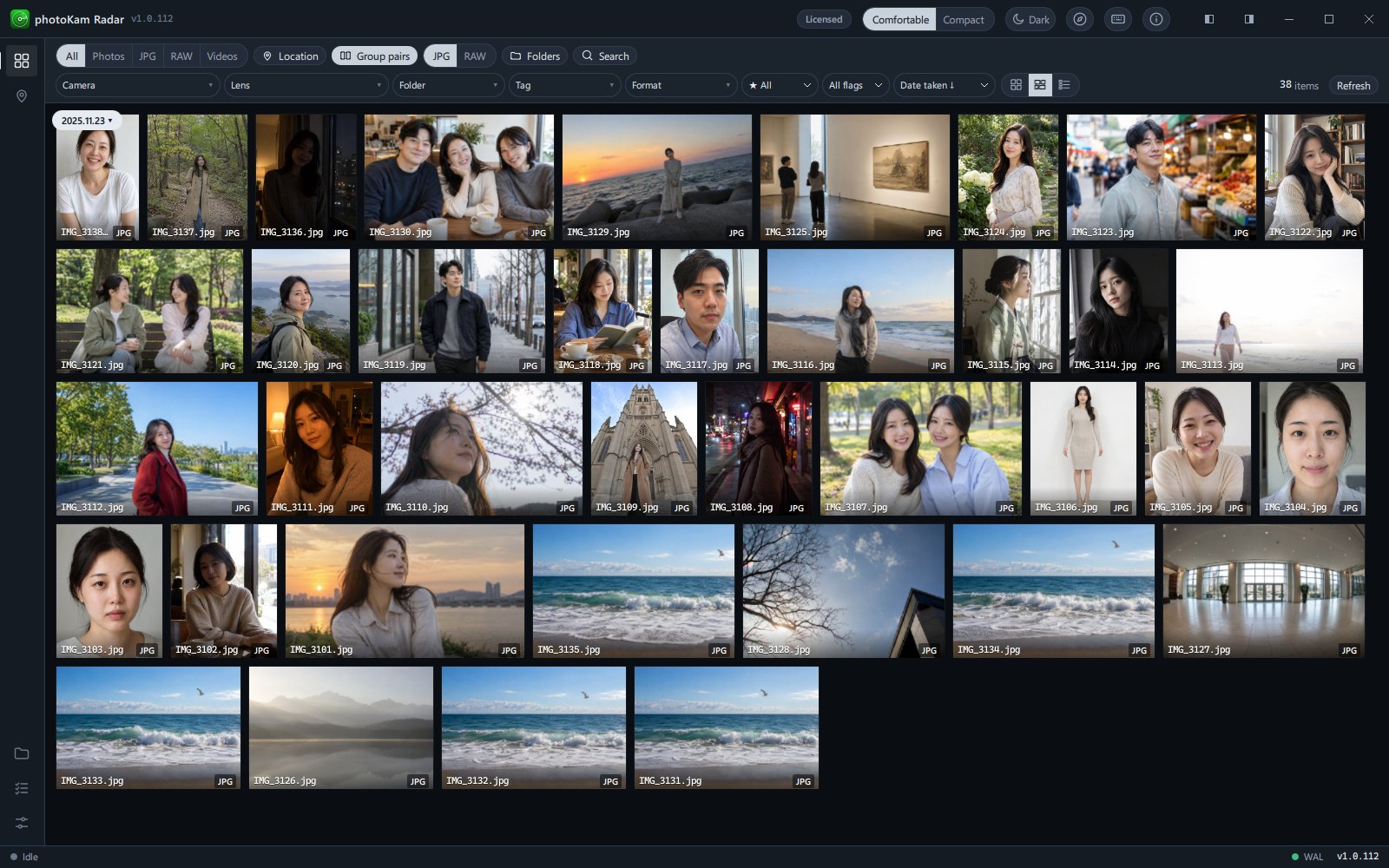
The first time you run the app, the welcome guide appears. Go through its 5 steps in order and choose the settings you want.
- Welcome
Introduces the app.
- Where should we look?
Choose A few folders (you pick the folders that hold your photos; quiet and light) or The whole computer (finds photos on all connected drives; system and program folders are excluded from the start).
- How would you like to view?
Choose grid, tiles or list.
- Your taste
Set the border color shown around selected photos.
- Start
Click Start and photoKam Radar starts finding photos in the background. Photos start to appear after a moment.
For details, see Installation and first launch. You can change your choices any time later in Settings.
Updating
- Update from the app (recommended) — When you run the app, it checks for a new version after a moment, and if there is one, the An update is available window shows what's new. Click Install now and the update is downloaded, checked and installed, and the new version starts automatically. You can also check yourself with Settings → Updates → Check now → FAQ — Updates.
- Install it yourself — Download the new installer from this page and install it; the old version is removed and the new version installed. Your photo list, ratings, tags, edits, settings and license stay as they are.
- If a newer version is already installed, installing an older version stops with the message "A newer version of photoKam Radar is already installed."
- You can also reinstall the same version. If the app isn't working properly, try reinstalling it (your data stays as it is).
- macOS — Same as Windows. Click Install now in the app's An update is available window.
Uninstalling (Windows)
Find photoKam Radar in Windows Settings → Apps → Installed apps (or Control Panel → Uninstall a program).
- Click Uninstall
The running photoKam Radar and the background indexer are closed, and the setting that starts the indexer automatically when the computer turns on is removed as well.
- Your original photos are not deleted. Only the program is removed.
- The data folders are kept — they hold your photo list, ratings, tags, edits, settings, license and thumbnails. So if you reinstall, you can pick up exactly where you left off.
- To delete all data — Before uninstalling, note down the Database path and Cache path under Settings → Storage, then delete those folders after uninstalling the program. This also removes your ratings, edits and license, so you'll need to register your license again if you reinstall.
Uninstalling (macOS)
- Turn off "Start automatically at logon" in Settings
This removes the background indexer's automatic start entry (
~/Library/LaunchAgents/com.photokam.radar.qt.indexer.plist). - Quit photoKam Radar.
- Move photoKam Radar from the Applications folder to the Trash.
- Your original photos are not deleted.
- The data folders remain even after you delete the app — if you reinstall, you can pick up exactly where you left off.
~/Library/Application Support/com.photokam.radar.qt— photo list, ratings, tags, edits, settings, license~/Library/Caches/com.photokam.radar.qt— thumbnails
- To delete all data, delete the two folders above after deleting the app. Your license is removed too, so you'll need to register it again if you reinstall.
System requirements
| Windows | macOS | |
|---|---|---|
| Operating system | 64-bit Windows 10 (1809 or later) · Windows 11 | macOS 13.3 (Ventura) or later |
| Computer | 64-bit (x64) PC | Mac with Apple silicon (M series) |
| Memory | 8 GB minimum, 16 GB or more recommended — viewing and culling photos uses around 0.3 GB, but using body detection for portrait retouching together with AI denoise makes the app alone use 4–6 GB | Same |
| Storage | Program about 0.7 GB + thumbnails (default limit 10 GB, can be changed in Settings) + add-on models for portrait retouching (only if downloaded, about 0.86 GB) | Program (download about 260 MB) + thumbnails · add-on models same as Windows |
| Display | 1920 × 1080 or higher recommended (minimum window size 940 × 600) | Same |
| Graphics card | A graphics card supporting DirectX 12, with 4 GB or more of dedicated graphics memory recommended. Integrated graphics work too, but AI denoise and portrait retouching are much slower (measured example: AI denoise on a 24-megapixel photo took 11 seconds with a dedicated graphics card and 166 seconds with integrated graphics) | No separate graphics card is needed. The GPU and Neural Engine built into Apple silicon are used (measured example: AI denoise on a 12-megapixel photo took about 4 seconds on an M4 Pro) |
| Internet | Not needed to install or use the app. Used only for updates, maps, downloading the add-on models for portrait retouching, and anonymous usage statistics | Same |
Free and full versions
- Anyone (individuals, companies, institutions, including commercial use) can use every feature in the free version.
- The difference between the free and full versions is the watermark. In the free version, a faint diagonal "photoKam Radar · Free" watermark is added when you export edited photos or show them in a slideshow (the editor and the full view also preview the same watermark on edited photos. However, photos that were only rotated 90° without opening the editor show no watermark in the full view or slideshows).
- To use the app without the watermark, buy and register a full license. In the full version you can also put your own logo · text watermark on exported photos. One license lets you use the app on one PC with no time limit.
- Price and purchase: USD 39. You can buy it at our pricing page.
- For how to register, see Free version · Full version · License registration.
- Terms of Use · Privacy Policy · Open-source notices (also available in the app's About window → Open-source notices)
Contact
- Purchases, licenses, problem reports: exapeak@naver.com
- When reporting a problem, please send the version number and logs → FAQ — Contact us.