Screen layout
The photoKam Radar window is made up of six parts. Follow the numbers in the picture below to learn what is where. If you're wondering what a button is called, rest the mouse pointer on it for a moment to see its name and shortcut.
On this page
When to use itAt a glance① Top bar② Left sidebar⑥ Status bar and photo-finding speedLibrary screen — adding and removing foldersJobs screen — errors and maintenance jobsAbout window and shortcuts sheetTwo kinds of notificationsKeyboard shortcutsGood to knowFrequently asked questionsRelated topicsWhen to use it
- When you've just launched the app and want to learn what is where.
- When you want to know what the dot color and text in the status bar at the bottom mean.
- When you want to change how fast photos are found, or add or remove folders.
At a glance
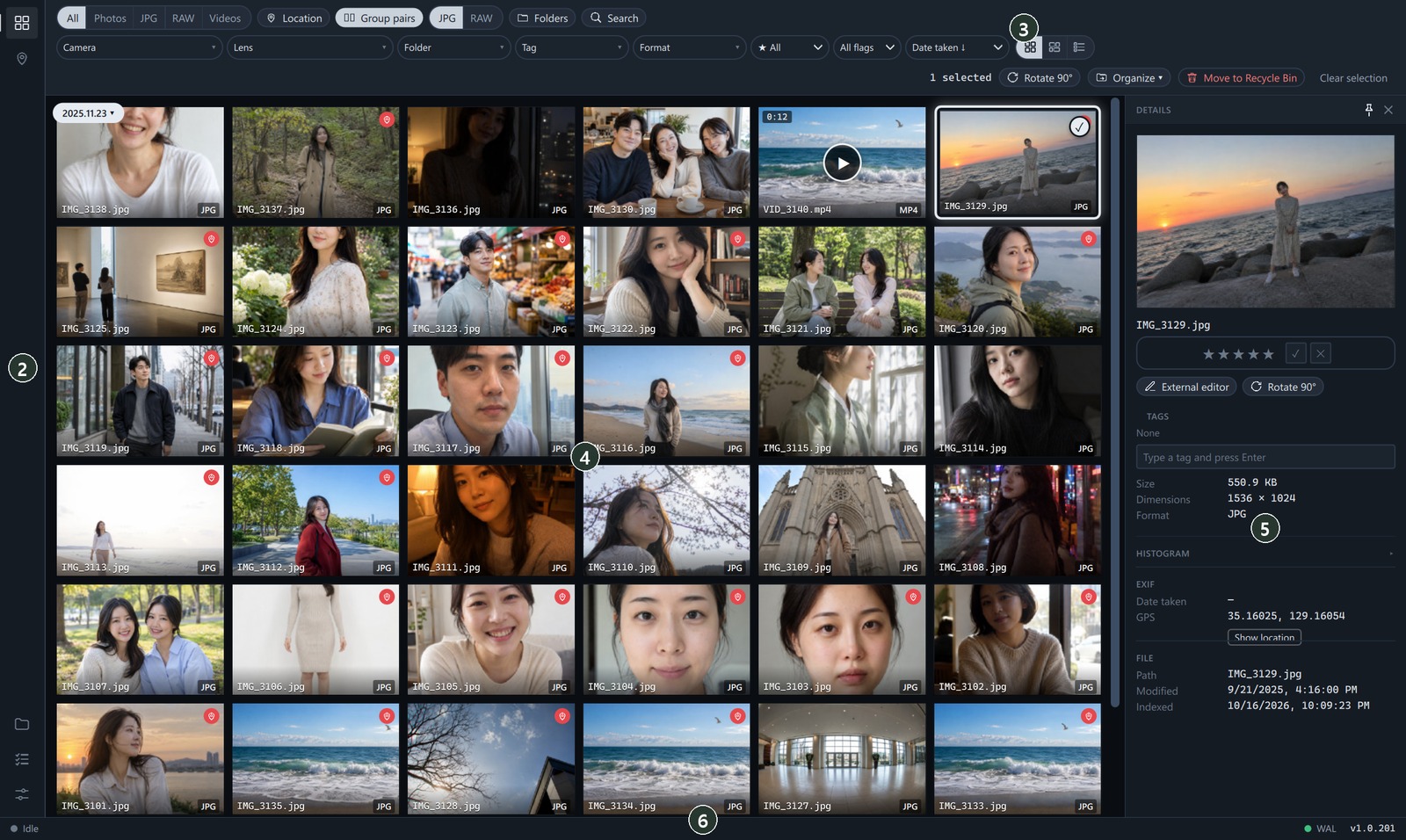
| No. | Name | What it does |
|---|---|---|
| ① | Top bar | License badge · screen density · theme · tour · shortcuts · about · window buttons |
| ② | Left sidebar | Switching screens: Gallery · Map · Library (Volumes) · Jobs · Settings |
| ③ | Toolbar | Type · location · group pairs · folders · search · quick filters · view mode · refresh |
| ④ | Photo list | Grid · tiles · list (Viewing and selecting photos) |
| ⑤ | Details | Rating · tags · shooting information of the selected photo (appears when you click a photo) |
| ⑥ | Status bar | Photo-finding status · speed · app version |
① Top bar

- ① Free version / Licensed — click to open the License window (Free version · Full version · License registration).
- ② Showcase — opens the photoKam Showcase gallery in your browser (Sharing to Showcase).
- ③ Comfortable · Compact — the height of rows and buttons. Compact fits more on one screen.
- ④ Dark ↔ Light — the screen colors switch each time you click.
- ⑤ Compass — starts the screen tour (10 steps).
- ⑥ Keyboard — opens the shortcuts sheet (same as ?).
- ⑦ (i) — opens the About window.
- ⑧ Window buttons — fill left half · fill right half · minimize · maximize · close. Click a half-fill button again to restore the window (on a portrait monitor, top · bottom half).
Drag an empty part of the top bar to move the window, and double-click it to switch between maximized and the original size.
When the full view or the editor is open, the top bar shows where you are in the middle.

- ① Where you are — Viewer, or Viewer › Edit while editing.
- ② Folder chip — click it for a menu with Open folder · Copy folder path · Copy file path. Next to it is the file name.
While this is shown, the density · theme · tour buttons are hidden for a moment and come back when you close it.
② Left sidebar
It is split into two buttons at the top and three at the bottom. The selected screen is shown in the accent color.
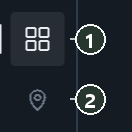
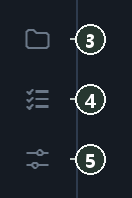
| No. | Screen | What it does |
|---|---|---|
| ① | Gallery | The list of photos and videos (Viewing and selecting photos) |
| ② | Map | Photos with location data on a map (Jump to date · Map) |
| ③ | Library / Volumes | Managing the folders and drives to search for photos (below) |
| ④ | Jobs | Errors from finding photos · maintenance jobs (below) |
| ⑤ | Settings | Language · theme · finding photos · updates (Settings) |
Even if you visit another screen, the gallery's scroll position and selected photos stay as they were.
⑥ Status bar and photo-finding speed
At the bottom left you see a dot and what's happening right now.
| Dot | Text (example) | Meaning |
|---|---|---|
| Accent color | Scanning folders… · Reading photo information… · Creating thumbnails… | Finding photos (the number left · speed are shown too) |
| Accent color | Reason for pausing (below) | There's work to do, but it's resting for a moment or going slowly |
| Gray | Idle | All work is done |
| Red | Indexer is off | Work remains, but the background indexer is stopped → Settings → Background indexer → Restart |
Changing the speed: Click ① the status text to open ② the Indexing speed menu. Click the speed you want; it changes within a few seconds and stays the same the next time you open the app.

| Speed | Target | When to use it |
|---|---|---|
| Eco | 30 photos a minute | Slowly, over several days, without getting in the way of anything you do |
| Balanced (default) | 120 photos a minute | Half speed while you use the app, faster when you step away |
| Performance | 600 photos a minute | When you want it done quickly (may cause fan noise and heat) |
Reasons for pausing (the text shown as is in the status bar)
- Paused — you paused it.
- Paused · full-screen app running · Paused briefly (video playing) — while you're playing a game or watching a video.
- Paused · on battery — while a laptop is running on battery (can be turned off in Settings).
- Paused · low disk space — when the disk is almost full.
- Indexing slowly (app in use) / Indexing quickly (you're away) — slowly while you use the app, faster when you step away.
Library screen — adding and removing folders
Click ③ in the left sidebar to open it. If you chose A few folders in the welcome guide, its title is Library.

- ① + Add folder — adds a photo folder. The background indexer soon searches that folder.
- ② Status dot — green = fully searched, accent color = searching, orange = disconnected (external drives and so on), gray = off.
- ③ Enabled — turn it off and that folder is no longer searched and is left out of the gallery.
- ④ Scan — searches that folder again right now.
- ⑤ Remove — removes it from the list. You're asked once more, and the ratings · tags recorded for photos in that folder are deleted too. The photo files stay as they are.
Each card shows the folder name · path · number of photos · when it was last searched. If photos have disappeared, Missing N appears.
If you chose The whole computer, the title is Volumes, and drive cards appear instead of folders. In place of Add folder there's Rescan drives, and in place of Enabled there's a Scan switch. Turn off the switch for drives you don't want searched. Cloud and network drives are off from the start.
Jobs screen — errors and maintenance jobs
Click ④ in the left sidebar to open it. Files that couldn't be read while finding photos are recorded here. Errors don't stop the overall search for photos.

- ① The number of recorded errors. If there are none, "No indexing errors" is shown.
- ② Delete all — deletes only the error records (the files stay as they are). If you check just a few in the table, Delete selected (n) appears.
- ③ Retry failed items only — tries to read only the files that failed again.
- ④ Fill in RAW location data — when RAW photos don't show up on the map, reads the location (GPS) from the files again and fills it in.
- ⑤ Recompute RAW+JPG pairs — pairs RAW and JPG files with the same name in the same folder again.
- ⑥ Scan everything now — brings forward work that was going slowly and finishes it all now.
Click Folder in the error table to open the folder that contains that file.
About window and shortcuts sheet
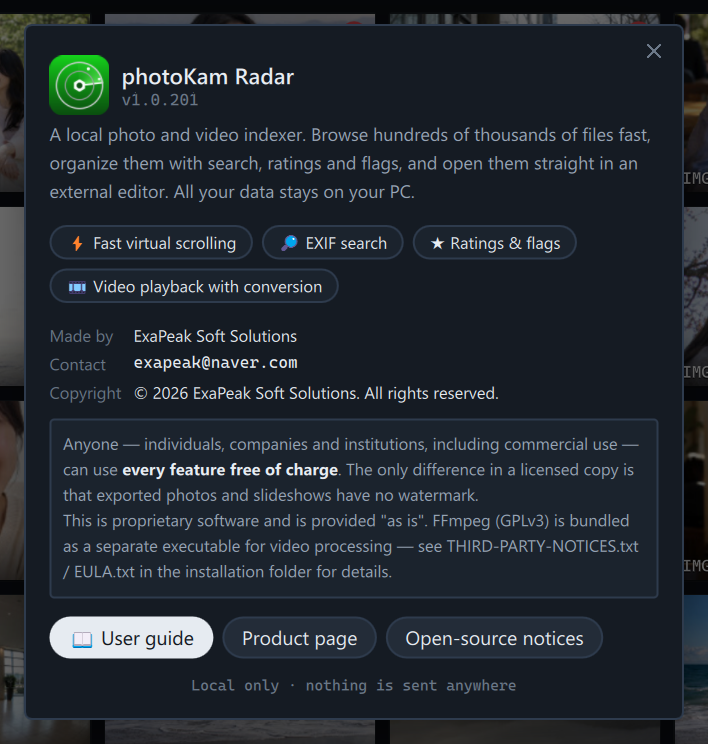
Click ⑥ (i) in the top bar to open the About window. It shows the version number, contact details, terms of use, and the User guide · Product page · Open-source notices buttons.
Press ? (or ⑤ in the top bar) to open the shortcuts sheet. It is divided into Gallery · Full view · General. For the complete list, see All keyboard shortcuts.

Close either window by clicking outside it, or with ✕ or Esc.
Two kinds of notifications
- Small notification — appears at the bottom center of the window for about 3 seconds and then disappears. Shown when a task finishes successfully (for example "N items copied").
- Red notification bar — just below the gallery toolbar. Shown when a task fails, and disappears when you refresh the list.
Keyboard shortcuts
| Key | Action |
|---|---|
| ? | Open · close the shortcuts sheet |
| F1 | Open this guide |
| Ctrl+, | Open Settings |
| Esc | Close an open window (About · shortcuts · License · map and so on) |
| Ctrl+1 · Ctrl+2 · Ctrl+3 | Grid · tiles · list |
| F5 | Refresh the gallery |
On macOS, press ⌘ (Command) instead of Ctrl.
Good to know
If you prefer the standard Windows title bar, turn on Settings → Classic title bar.
Gallery shortcuts (rating · flag · Recycle Bin and so on) work only while the gallery is shown.
Finding photos continues even after you close the window. To stop it completely, click Settings → Background indexer → Stop.
The minimum window size is 940 wide by 600 high. When you make the window narrower, the toolbar wraps onto several lines.
Frequently asked questions
I see a red dot in the status bar.
It means the background indexer is stopped. Go to Settings → Background indexer and click Restart.
"Paused · on battery" keeps showing.
It continues once you plug in the power. To keep going on battery too, turn off Settings → Pause on battery.
How do I know whether all my photos have been found?
When the status bar shows Idle and the dots on the Library cards are green, everything has been found.
If I delete the error records, are the photos deleted too?
No. Only the records are deleted. If you want to try again, click Retry failed items only before deleting them.